


Free data recovery software for Windows can help recover accidentally deleted photos, documents, videos, ZIP files, and other important files when they are no longer visible in the Recycle Bin. However, recovery success depends on what happened to the storage device and whether the deleted data has been overwritten.
This guide explains how Windows file recovery works, when free recovery software can help, how to use it safely, its limitations, and the mistakes you should avoid. Whether you deleted a file by accident, formatted a drive, or lost files from a USB flash drive or memory card, the steps below can help you choose an appropriate recovery approach.
What Is Free Data Recovery Software for Windows?
Free data recovery software for Windows is a program designed to scan storage devices and locate files that have been deleted, lost, or become inaccessible.
When you normally delete a file, Windows does not always immediately erase every piece of its data from the storage device. Instead, the space previously occupied by that file may become available for reuse. Recovery software can sometimes locate remaining file information and reconstruct the file.
Common situations where recovery software may help include:
- Accidentally deleted files
- Files removed from the Recycle Bin
- Lost documents after a system problem
- Deleted photos and videos
- Files missing from USB drives
- Data lost from memory cards
- Some accidentally formatted partitions
- Files that disappeared after a software problem
The important point is that deleted does not always mean permanently destroyed. However, recovery is never guaranteed.
How Does Windows Data Recovery Work?

Windows data recovery generally works by examining the file system and storage sectors for information associated with lost files.
When a file is deleted, the operating system may mark the space it occupied as available. Until new information overwrites that space, portions of the original file may remain recoverable.
Recovery software may use several techniques to locate these files.
File System Recovery
Some recovery programs examine file-system information such as NTFS, FAT32, and exFAT structures.
This approach can sometimes recover files while preserving useful information such as file names, folders, and directory structure.
File Signature Scanning
A deeper scan may search the storage device for recognizable patterns associated with particular file types.
For example, recovery software may identify common formats for:
- JPG images
- PNG images
- MP4 videos
- PDF documents
- DOCX files
- ZIP archives
This type of recovery can be useful when normal file-system information is damaged or unavailable.
Partition Recovery
If a partition disappears or becomes inaccessible, some recovery programs can scan the drive for lost partition information and potentially locate files stored there.
The results depend heavily on the cause of the problem and the condition of the drive.
When Should You Use Free Data Recovery Software?
You should consider recovery software as soon as you realize an important file has been deleted or lost.
The most important rule is simple: stop using the affected storage device whenever possible.
Every time new data is written to a drive, there is a possibility that it could overwrite information belonging to the deleted files.
For example, if you accidentally delete important photos from a USB drive, avoid copying new photos or documents onto that same USB drive before attempting recovery.
Common Recovery Situations
Free recovery software may be worth trying when:
- You accidentally deleted a file.
- You emptied the Recycle Bin.
- Files disappeared from a USB drive.
- A memory card no longer shows expected files.
- A partition is missing.
- A formatting operation removed access to files.
- A software problem caused files to become inaccessible.
The earlier you stop writing to the affected storage device, the better your chances may be.
How to Choose Free Data Recovery Software for Windows
Not every recovery program works in the same way. Before installing one, look at several important factors.
Check the Free Recovery Limit
Some applications advertise themselves as free but place restrictions on the amount of data you can recover without paying.
Check whether the free version has:
- A recovery-size limit
- File-type restrictions
- Scan limitations
- Time restrictions
- A requirement to upgrade before saving recovered files
A genuinely useful free option should clearly explain its limitations.
Check Windows Compatibility
Make sure the software supports the Windows version you are using.
Compatibility can vary between applications, particularly when dealing with newer Windows versions, unusual file systems, or specialized storage devices.
Look for Preview Features
A preview function is extremely useful because it lets you determine whether a program can actually identify the required files before spending time recovering everything.
If a recovery application can preview your deleted photos or documents correctly, that is a useful indication that the files may be recoverable.
Consider the Storage Type
Your recovery approach should also depend on the storage device.
Different situations include:
- Internal HDD
- SSD
- USB flash drive
- External hard drive
- SD card
- Memory card
- Other removable storage
Recovery behavior can vary significantly between these technologies.
Free Data Recovery Software vs. Paid Software
Free and paid recovery applications can use similar basic recovery concepts, but their features and limitations can differ.
| Feature | Free Recovery Software | Paid Recovery Software |
|---|---|---|
| Basic file scanning | Often available | Usually available |
| Deleted-file recovery | Often available | Usually available |
| Preview files | Depends on program | Commonly available |
| Recovery limits | May apply | Usually higher or removed |
| Advanced recovery tools | May be limited | More commonly available |
| Technical support | May be limited | Often included |
| Complex recovery cases | Depends on software | May offer additional features |
A paid program is not automatically capable of recovering every lost file. If the original data has been overwritten or the storage device has suffered serious physical damage, software alone may not solve the problem.
How to Use Free Data Recovery Software for Windows
The exact interface differs between programs, but the general recovery process is similar.
Step 1: Stop Using the Affected Drive
Immediately reduce activity on the drive containing the lost files.
Do not:
- Install unnecessary programs on it
- Download large files to it
- Copy new files onto it
- Save recovered files back onto it
This is one of the most important recovery precautions.
Step 2: Install Recovery Software Carefully
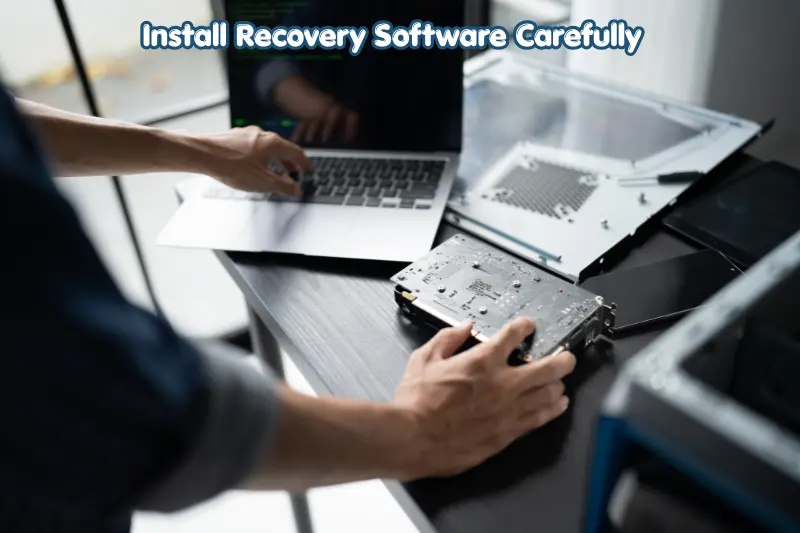
If possible, install the recovery program on a different storage device.
For example, if you lost files from your D: drive, avoid installing recovery software onto D:.
This reduces the risk of overwriting the deleted information.
Step 3: Select the Affected Drive
Open the recovery application and select the drive or partition where the files were originally stored.
Be careful when selecting the location. Scanning the wrong drive will not help you recover the missing files.
Step 4: Start a Scan
Many programs offer a quick scan and a deeper scan.
A quick scan may be faster and can sometimes locate recently deleted files.
A deep scan takes longer but may examine the storage device more thoroughly.
If the quick scan does not find what you need, a deeper scan may be worth trying.
Step 5: Preview the Results
Look through the scan results before recovering everything.
Search by:
- File name
- File extension
- Folder
- Date
- File type
If available, use the preview feature to verify that the file appears intact.
Step 6: Recover Files to Another Drive
This step is critical.
Never save recovered files to the same drive you are recovering from if you can avoid it.
For example, if the deleted files came from a USB drive, save the recovered files to your computer’s internal drive or another external storage device.
Can You Recover Files After Emptying the Recycle Bin?
Sometimes, yes.
When you empty the Windows Recycle Bin, the operating system generally makes the space occupied by those files available for reuse. The original data may remain on the storage device until new information overwrites it.
A recovery application may therefore be able to locate some of the deleted files.
However, success depends on factors such as:
- How much time has passed
- Whether new files were written
- The type of storage device
- The file system
- Whether the deleted data was fragmented
- Whether the storage area has been reused
There is no guarantee that every deleted file can be recovered.
Can Free Recovery Software Recover Formatted Drives?
It can sometimes recover files from a formatted drive, but the result depends on the type of formatting and what happened afterward.
A quick format and a situation involving extensive overwriting are very different.
If a drive has been formatted accidentally, stop using it and scan it with appropriate recovery software. Avoid immediately formatting it again or copying large amounts of data onto it.
If the drive contains extremely important information, professional data recovery may be safer than repeatedly experimenting with different programs.
Can You Recover Data From an SSD?
SSD recovery can be more complicated than traditional hard-drive recovery.
Modern SSDs may use technologies such as TRIM, which can help the drive manage unused storage blocks. When deleted data is processed by the storage system, traditional undelete techniques may not work in the same way as they do on an HDD.
This means you should not assume that a deleted file from an SSD will remain recoverable simply because it would potentially remain on an HDD.
If the data is important, stop using the SSD and consider your recovery options before continuing normal computer use.
Can Recovery Software Repair a Physically Damaged Drive?
Usually, software recovery is intended for logical data loss rather than serious physical hardware damage.
Examples of physical problems include:
- A drive that is not detected at all
- Severe mechanical noises from an HDD
- Damaged connectors
- Electrical damage
- Severe physical impact
- A drive that repeatedly disconnects
Continuing to operate a physically damaged drive can potentially make the situation worse.
For valuable or irreplaceable data, a professional data recovery service may be more appropriate than repeated software scans.
Benefits of Free Data Recovery Software
Free recovery tools can be useful because they allow users to attempt recovery without immediately purchasing professional software.
No Initial Cost
The biggest advantage is obvious: you can test the recovery process without paying upfront, although individual applications may impose limits.
Easy for Common Problems
Accidental deletion is often easier to address than severe physical damage.
For simple situations, a recovery application can provide a practical first step.
File Preview
Programs that offer previews can help you identify whether the desired files are actually recoverable.
Useful for Removable Storage
Recovery software can be particularly useful for certain situations involving USB drives, SD cards, and external hard drives.
Limitations of Free Data Recovery Software
Recovery software has important limitations that users should understand before relying on it.
Recovery Is Not Guaranteed
No software can guarantee recovery of every deleted file.
If the relevant storage space has been overwritten, the original information may no longer be recoverable through ordinary software methods.
Some Files May Be Corrupted
A program may find a file but recover it incompletely.
For example, a recovered video might open but contain missing sections, or a document might be damaged.
Free Versions May Have Limits
Some free tools restrict the amount of data that can be recovered or reserve advanced features for paid editions.
Physical Damage Requires Different Treatment
Software cannot normally fix a physically failed storage device.
Common Mistakes to Avoid During Data Recovery
A few mistakes can reduce your chances of successful recovery.
Installing Software on the Same Drive
Installing a recovery program on the affected drive can overwrite deleted data.
Saving Recovered Files to the Same Location
Always choose a different storage destination whenever possible.
Continuing to Use the Computer Normally
Downloading files, installing applications, updating software, and creating documents can all write data to storage.
Reformatting the Drive Repeatedly
Repeated formatting or partition changes can complicate recovery.
Running Multiple Random Recovery Programs
Trying many applications without a recovery plan can increase drive activity. If the data is highly important, consider creating an appropriate disk image or consulting a professional rather than repeatedly scanning the original device.
Tips for Safer Windows Data Recovery
Use these practical guidelines when attempting recovery:
- Stop using the affected drive.
- Do not install recovery software on the same drive.
- Use a separate destination for recovered files.
- Preview files before recovering them when possible.
- Start with a less invasive scan when appropriate.
- Keep important recovered files on a safe backup.
- Do not assume that a successful scan means every file is intact.
- Seek professional help when the drive has serious physical problems.
How to Prevent Future Data Loss
Recovery is useful, but prevention is much safer.
A reliable backup strategy can protect your files before accidental deletion or hardware failure occurs.
Important files can be backed up to:
- An external hard drive
- A separate SSD
- Network storage
- A reputable cloud storage service
- Another secure backup location
For particularly important files, maintaining more than one backup can provide additional protection.
Windows also includes built-in backup-related features, and third-party backup applications can provide additional options.
If you are looking for Free Data Recovery Software for Windows, this guide can help you understand different recovery options for accidentally deleted, lost, or inaccessible files. You can also explore our Windows and technology guides for more useful troubleshooting tips. For official Windows recovery and file management information, visit Microsoft Support.
Frequently Asked Questions
What is the best free data recovery software for Windows?
There is no single recovery program that is best for every situation. The appropriate choice depends on the storage device, file system, type of data loss, and limitations of the free version. Compare supported Windows versions, recovery limits, preview features, scan types, and supported file systems before choosing a tool.
Can permanently deleted files be recovered from Windows?
Some permanently deleted files may still be recoverable if their storage space has not been overwritten. However, “permanently deleted” does not guarantee recovery. Continued computer use can overwrite the old data, and storage technologies such as SSDs can behave differently from traditional hard drives.
Is free data recovery software safe to use?
Recovery software from a reputable developer can be safe, but users should download applications from trustworthy sources and carefully review what they install. Avoid suspicious programs that make unrealistic recovery promises. Also, install the software on a different drive from the one containing the lost files whenever possible.
Can I recover deleted photos from a USB drive?
Yes, deleted photos from a USB drive may sometimes be recovered with data recovery software. Stop using the USB drive immediately, scan it with a suitable recovery program, preview the discovered images, and save recovered photos to a different storage device.
What should I do if recovery software cannot find my files?
First, avoid writing additional data to the affected drive. Try a deeper scan if the software provides one and verify that you selected the correct drive. Free data recovery software for WindowsIf the storage device is physically damaged or the files are extremely valuable, stop experimenting and consider professional data recovery services.
Conclusion
Free data recovery software for Windows can be a practical solution for accidentally deleted or lost files, particularly when the storage device is still functioning normally. The most important step is to stop using the affected drive as soon as you notice the data loss.
Choose recovery software that clearly explains its free features and limitations, scan the correct storage device, preview files when possible, and always save recovered data to a separate location.
If the drive has physical damage or the missing files are irreplaceable, professional recovery may be a safer option than repeatedly scanning the original device.
